📋 Table of Contents
Why Is Your Disk Full?
Over time, Windows collects temporary files, old downloads, and cached data. Common culprits include Windows Update files (5-20 GB), temporary files, Downloads folder, and unused applications.
1. Use Disk Cleanup Tool
Press Windows key, type "Disk Cleanup" and open it. Select C: drive. Click "Clean up system files" for deeper cleaning. Check all boxes including Windows Update Cleanup and Temporary files.
Windows Update Cleanup alone can free 5-10 GB on computers that haven't been cleaned in a while.
2. Enable Storage Sense
Go to Settings → System → Storage → Storage Sense and toggle it on. Configure it to run weekly and automatically delete temporary files older than 30 days and Recycle Bin items older than 30 days.
3. Delete Temporary Files
Press Windows + R, type %temp% and press Enter. Select all (Ctrl + A) and delete. Skip files in use. Also try temp (without %) for system temp files.
4. Uninstall Unused Applications
Go to Settings → Apps → Installed apps. Sort by size. Uninstall anything you don't use. Games can take 20-100 GB each. Also speed up your Windows PC by removing bloatware.
5. Clear Downloads Folder
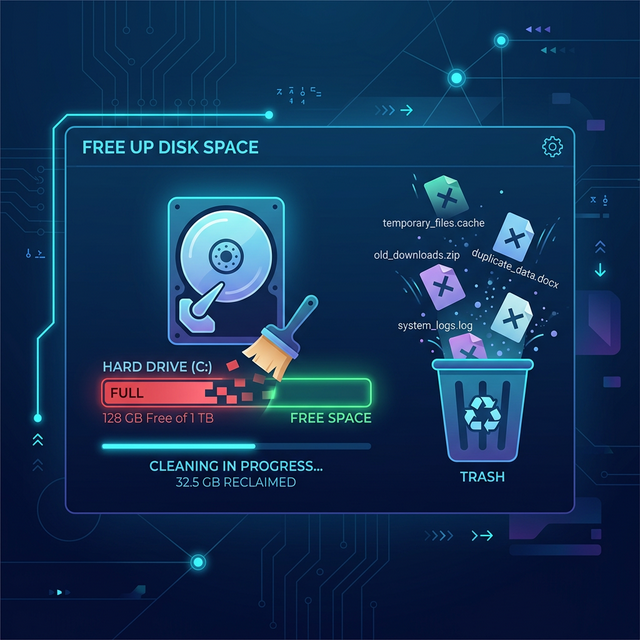
Open File Explorer, navigate to Downloads, sort by date, and delete old installers and files. Move important files to organized folders or cloud storage first.
6. Empty Recycle Bin
Right-click the Recycle Bin on your desktop and select "Empty Recycle Bin." Deleted files still occupy space until the bin is emptied. Need to recover deleted files? Check our guide first.
7. Use OneDrive Files On-Demand
Enable "Files On-Demand" in OneDrive settings to keep files in the cloud. Right-click folders you rarely access and select "Free up space" to remove local copies while keeping cloud versions.
8. Clean WinSxS Folder
Open Command Prompt as Administrator and run: Dism.exe /online /Cleanup-Image /StartComponentCleanup. This safely removes old Windows component versions that can consume gigabytes.
9. Use a Disk Analyzer
Tools like WinDirStat visualize disk usage with colorful charts showing exactly what's consuming space. Great for finding hidden large files.
Frequently Asked Questions
How much free space should I keep?
Keep at least 10-15% of total drive capacity free. On a 256 GB drive, that's about 25-40 GB.
Will deleting temp files cause problems?
No! Temporary files are safe to delete. Windows recreates any it needs.