📋 Table of Contents
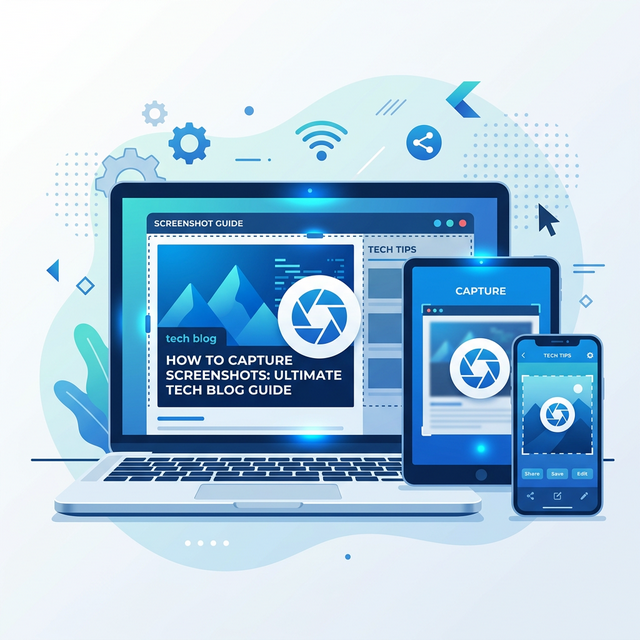
Taking a screenshot is one of the most basic yet essential digital skills. Whether you need to save an important receipt, capture an error message for tech support, or share something funny from social media, knowing how to take a screenshot on your device is incredibly useful.
In this comprehensive guide, we'll cover every major platform — Windows, Mac, Android, iPhone, and Chromebook — with all available methods, keyboard shortcuts, and built-in tools. Plus, we'll share our top picks for third-party screenshot tools that offer advanced features.
How to Take a Screenshot on Windows
Windows offers multiple ways to capture your screen. Here are the most common methods, from simplest to most powerful:
Method 1: Print Screen Key (Fastest)
Press the PrtScn (Print Screen) key on your keyboard. This captures your entire screen and
copies it to the clipboard. You can then paste it (Ctrl + V) into any image editor, Word
document, email, or chat application.
On Windows 10/11, press Windows + PrtScn to automatically save the screenshot as a PNG
file in your Pictures > Screenshots folder. Your screen will briefly dim to confirm the capture.
Method 2: Alt + Print Screen (Active Window Only)
Press Alt + PrtScn to capture only the currently active window instead of the entire screen.
This is perfect when you want to capture a specific application without showing your taskbar and
desktop.
Method 3: Snipping Tool / Snip & Sketch (Most Versatile)
Press Windows + Shift + S to open the Snipping Tool overlay. You'll see four capture
options:
- Rectangular Snip: Draw a rectangle around the area you want to capture
- Freeform Snip: Draw a custom shape around the area
- Window Snip: Click a window to capture it
- Fullscreen Snip: Capture the entire screen
After capturing, a notification appears. Click it to open the screenshot in the editor where you can annotate, crop, and save it.
Method 4: Xbox Game Bar (For Video and Gaming)
Press Windows + G to open the Xbox Game Bar, then click the camera icon or press
Windows + Alt + PrtScn. This is particularly useful for capturing screenshots in games and
full-screen applications.
How to Take a Screenshot on Mac
macOS has excellent built-in screenshot tools with several keyboard shortcuts:
Capture Entire Screen
Press Cmd + Shift + 3. The screenshot is automatically saved to your desktop as a PNG file.
You'll see a thumbnail preview in the corner that you can click to edit before saving.
Capture a Selected Area
Press Cmd + Shift + 4. Your cursor changes to a crosshair. Click and drag to select the area
you want to capture. Release the mouse button to take the screenshot. It saves to your desktop.
Capture a Specific Window
Press Cmd + Shift + 4, then press Space. Your cursor changes to a camera icon.
Click on the window you want to capture. The screenshot includes the window's shadow for a professional
look.
Screenshot Toolbar (macOS Mojave and later)
Press Cmd + Shift + 5 to open the Screenshot toolbar with all capture options plus screen
recording. You can also set a timer, choose where to save screenshots, and more.
How to Take a Screenshot on Android
The method varies slightly by manufacturer, but these work on most Android devices:
Universal Method
Press and hold Power + Volume Down simultaneously for about 1 second. The screen will flash
and the screenshot will be saved to your Gallery or Photos app.
Three-Finger Swipe (Samsung, OnePlus, Xiaomi)
Many Android phones support swiping three fingers down on the screen to take a screenshot. Enable this in
Settings → Advanced features → Motions and gestures → Palm swipe to capture (Samsung) or
similar.
Google Assistant
Say "Hey Google, take a screenshot" or type the command in Google Assistant. The screenshot will be saved and you'll get options to share, edit, or save it.
Scrolling Screenshot (Long Screenshot)
After taking a screenshot, tap the "Scroll capture" or "Capture more" button that appears at the bottom of the screen. This lets you capture entire web pages or long documents that extend beyond the visible screen.
How to Take a Screenshot on iPhone
iPhone with Face ID (iPhone X and later)
Press the Side button + Volume Up simultaneously. The screen will flash and a thumbnail
appears in the bottom-left corner. Tap it to edit, markup, or share. Swipe it away to save to Photos.
iPhone with Home Button (iPhone 8 and earlier)
Press the Home button + Side button (or Top button) simultaneously. The screen will flash
and the screenshot saves to your Photos app.
Back Tap (iOS 14+)
Go to Settings → Accessibility → Touch → Back Tap. Set "Double Tap" or "Triple Tap" to
"Screenshot." Now you can take a screenshot by tapping the back of your iPhone 2 or 3 times.
How to Take a Screenshot on Chromebook
Full Screen
Press Ctrl + Show Windows key (the rectangle with two lines, or F5 on external keyboards).
The screenshot saves to your Downloads folder.
Partial Screen
Press Ctrl + Shift + Show Windows, then click and drag to select the area you want to
capture.
Screen Capture Tool
Press Ctrl + Shift + Show Windows or click the clock area and select "Screen capture" from
the Quick Settings panel. This gives you options for screenshots and screen recording.
Best Third-Party Screenshot Tools
While built-in tools work great for basic screenshots, these third-party tools offer advanced features like scrolling capture, annotation, cloud storage, and more:
- ShareX (Windows, Free): The most powerful free screenshot tool with annotations, OCR, scrolling capture, and automatic uploading
- Lightshot (Windows/Mac, Free): Simple and lightweight with instant editing and sharing capabilities
- Greenshot (Windows, Free): Easy-to-use with built-in image editor and multiple export options
- Snagit (Windows/Mac, Paid): Professional tool with advanced editing, templates, and video capture
- CleanShot X (Mac, Paid): The best screenshot tool for Mac with scrolling capture, annotations, and cloud hosting
Frequently Asked Questions
Where do screenshots save on Windows?
If you use Windows + PrtScn, screenshots save to
This PC → Pictures → Screenshots. If you use just the PrtScn key, the screenshot is copied
to your clipboard and not saved as a file — you need to paste it somewhere.
How do I take a screenshot of just one window?
On Windows, use Alt + PrtScn. On Mac, use Cmd + Shift + 4 then press
Space and click the window.
Can I take a screenshot of an entire web page?
Yes! Use Chrome DevTools: press F12, then Ctrl + Shift + P, type "screenshot,"
and select "Capture full size screenshot." On Android, use the scrolling screenshot feature. On Firefox,
right-click the page and select "Take a Screenshot" → "Save full page."
How do I edit screenshots without installing software?
Windows: Use the Snipping Tool editor (opens automatically after capture) or Paint. Mac: Click the thumbnail preview after capturing to open Markup. Both offer basic editing like cropping, drawing, and adding text.