📋 Table of Contents
Why Update GPU Drivers?
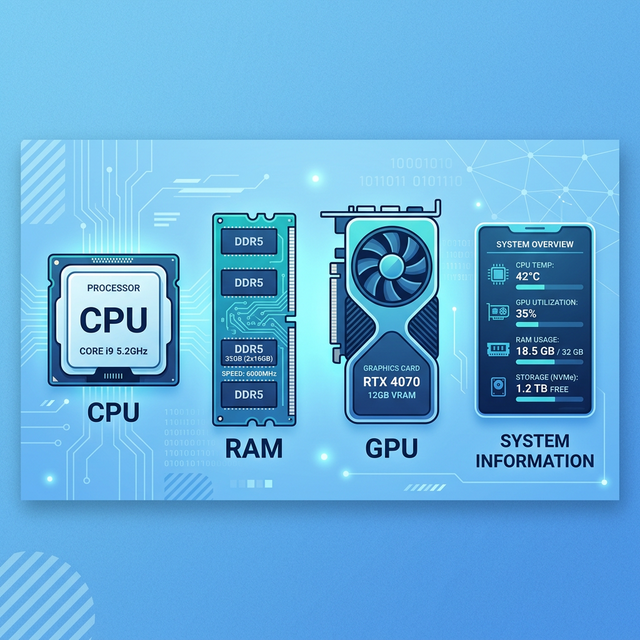
Graphics drivers directly affect gaming performance, video editing speed, and display stability. Updated drivers fix bugs, add support for new games, and can boost FPS by 5-15%. Learn to check your PC specs to identify your GPU first.
1. Check Your GPU Model
Press Ctrl + Shift + Esc to open Task Manager. Click the "Performance" tab, then "GPU 0." Your GPU model is shown at the top right. Alternatively, press Windows + R, type dxdiag, and check the Display tab.
2. Update NVIDIA Drivers
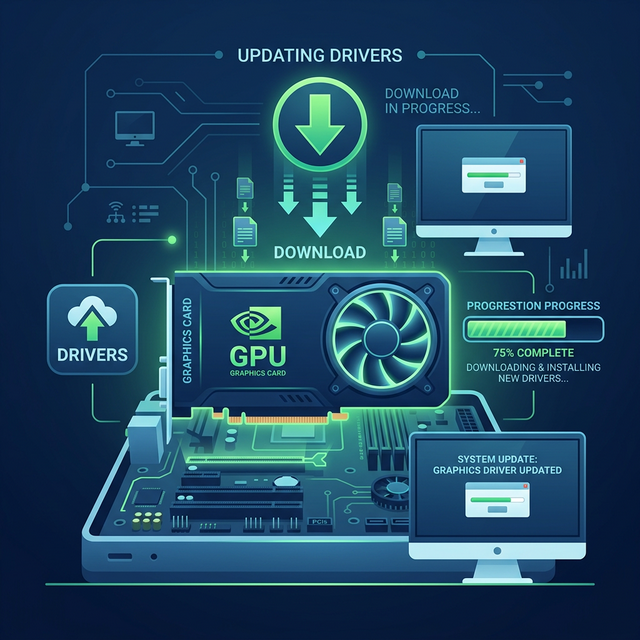
Download GeForce Experience from NVIDIA's website. Open it, go to the Drivers tab, and click "Check for Updates." Click "Express Installation" for the simplest update. Alternatively, download drivers directly from NVIDIA's driver page.
3. Update AMD Drivers
Download AMD Software: Adrenalin Edition. Open it, click "Check for Updates" in the Home tab. AMD's tool auto-detects your GPU and offers the latest driver. Always choose "Recommended" drivers for stability.
4. Update Intel Drivers
For Intel integrated graphics, download the Intel Driver & Support Assistant. It automatically scans your system and shows available updates for all Intel components including graphics.
5. Update via Device Manager
Open Device Manager, expand "Display adapters," right-click your GPU, and select "Update driver → Search automatically." This method uses Windows Update and may not always have the latest driver, but it's the simplest approach.
6. How to Roll Back a Bad Driver
If a new driver causes issues, open Device Manager, right-click your GPU, select Properties → Driver tab → "Roll Back Driver." This reverts to the previously installed driver version.
Before updating drivers, create a System Restore Point so you can easily undo any changes.
Frequently Asked Questions
How often should I update GPU drivers?
Check monthly, or whenever a new major game releases. NVIDIA and AMD release "Game Ready" drivers optimized for new titles.
Can bad drivers crash my PC?
Yes, faulty drivers can cause blue screens. Always download from official sources and use the rollback feature if issues occur.