📋 Table of Contents
Why Backup Matters
Hard drives fail, ransomware encrypts files, and accidental deletions happen. Without a backup, you could lose years of photos, documents, and important data in seconds. A proper backup strategy protects you against hardware failure, malware, theft, and human error.
The 3-2-1 Backup Rule
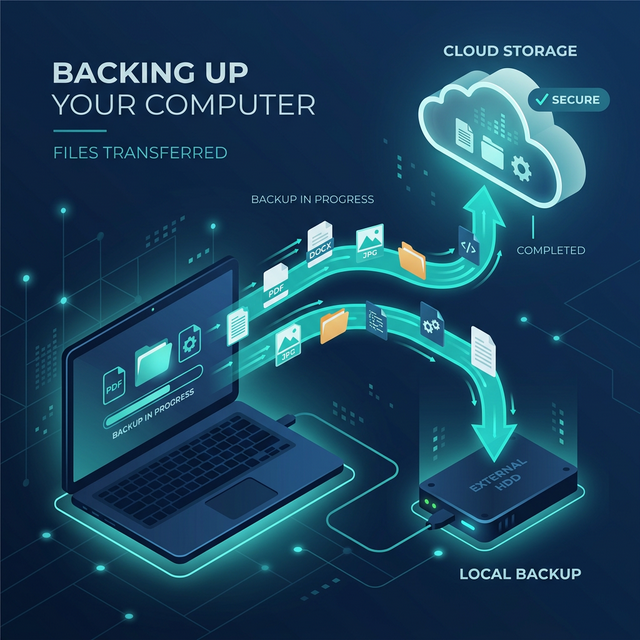
Follow the 3-2-1 rule: keep 3 copies of your data, on 2 different types of media, with 1 copy offsite (cloud). This way, no single disaster can wipe out all your data.
1. Use File History
Go to Settings → System → Storage → Advanced storage settings → Backup options. Connect an external drive and enable File History. It automatically saves copies of your files every hour, letting you restore previous versions of any file.
2. Windows Backup App
Windows 11 includes a modern Backup app. Open it from Start menu, sign in with your Microsoft account, and choose what to backup: folders, apps, settings, and credentials. Everything syncs to OneDrive automatically.
3. OneDrive Cloud Backup
Enable OneDrive backup for Desktop, Documents, and Pictures folders. Right-click OneDrive in taskbar → Settings → Sync and backup → Manage backup. Files sync automatically to the cloud and are accessible from any device.
4. System Image Backup
For a complete snapshot of your entire system: open Control Panel → Backup and Restore (Windows 7) → Create a system image. Save to an external drive. This captures everything including Windows, programs, and settings — perfect for disaster recovery.
5. External Drive Backup
Buy an external USB drive (1-2 TB for $50-80). Simply drag important folders to the drive periodically, or use File History for automatic backups. Keep the drive unplugged when not backing up to protect against ransomware. If you ever lose files, learn how to recover deleted files.
6. Automate Your Backups
The best backup is one you don't have to think about. Enable Storage Sense, File History, and OneDrive sync. Set File History to backup every hour and keep versions for 6 months. This way, you're always protected.
Test your backups regularly! Try restoring a file from each backup method to make sure they actually work when you need them.
Frequently Asked Questions
How much storage do I need for backups?
At minimum, a drive 2x the size of your data. A 1 TB external drive works for most users.
Does OneDrive count as a backup?
Partially. OneDrive syncs files to the cloud, but if you delete a file locally, it's also deleted from OneDrive (with 30-day recycle bin). For true backup, combine OneDrive with File History or an external drive.