📋 Table of Contents
Why Your Battery Drains Fast
Common battery killers: screen brightness too high, too many background apps, Bluetooth and WiFi always on, outdated drivers, power-hungry programs, and an aging battery (batteries degrade after 2-3 years of daily use).
1. Change Power Plan
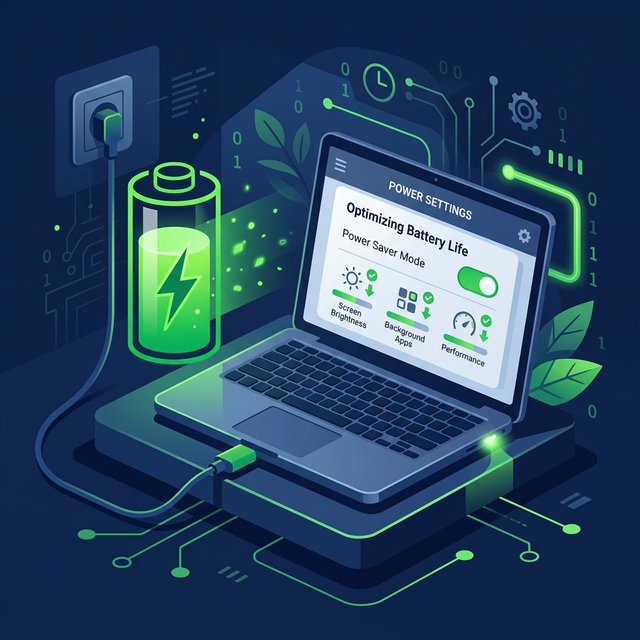
Go to Settings → System → Power & battery. Set Power mode to "Best power efficiency" when on battery. Avoid "Best performance" unless plugged in. This alone can add 1-2 hours of battery life.
2. Lower Screen Brightness
The display is the biggest battery drain. Lower brightness to 40-60% when indoors. Press Fn + brightness keys or go to Settings → System → Display. Also enable "Night light" to reduce blue light and save battery in the evening.
3. Enable Battery Saver
Go to Settings → System → Power & battery → Battery saver. Set it to turn on automatically at 30%. Battery Saver reduces background activity, dims the screen slightly, and disables push notifications to extend battery life.
4. Disable Background Apps
Go to Settings → Apps → Installed apps. Click the three dots next to each app → Advanced options → set Background app permissions to "Never" for apps you don't need running constantly. Speeding up your PC also helps battery life.
5. Adjust Sleep Settings
Set your screen to turn off after 2-3 minutes on battery and sleep after 5 minutes of inactivity. Go to Settings → System → Power & battery → Screen and sleep.
6. Turn Off Bluetooth and WiFi When Not Needed
Disable Bluetooth and WiFi when not actively using them. Quick toggle: click the network icon in taskbar to access quick settings. Each wireless radio consumes power even when idle.
7. Optimize Your Browser
Close unnecessary tabs — each tab consumes RAM and CPU. Use Edge instead of Chrome on battery; Edge is optimized for Windows power efficiency. Enable "Sleeping tabs" in Edge to suspend inactive tabs. Block ads to reduce page processing.
8. Check Battery Health
Open Command Prompt and run powercfg /batteryreport. Open the generated HTML file to see your battery's design capacity vs current capacity, cycle count, and usage history. If capacity is below 50% of design, consider replacing the battery.
To maximize battery lifespan, keep charge between 20-80% when possible. Avoid leaving your laptop plugged in at 100% for extended periods.
Frequently Asked Questions
How long should a laptop battery last?
Most modern laptops last 6-10 hours. Actual time depends on brightness, workload, battery age, and hardware. Gaming laptops may only last 2-3 hours under load.
Should I replace my battery?
If your battery report shows less than 50% of design capacity, or if your laptop dies within 1-2 hours of normal use, it's time for a replacement.