📋 Table of Contents
1. Check the Obvious First
Before diving into technical fixes: Is the volume turned up? Is the speaker/headphone plugged in? Is it muted? Click the speaker icon in the taskbar and check. Try different headphones or speakers to rule out hardware issues.
2. Set Correct Audio Output
Click the speaker icon in taskbar → click the arrow next to the volume slider. Select your correct output device. Windows sometimes switches to the wrong device when you connect/disconnect headphones or monitors.
3. Run Audio Troubleshooter
Go to Settings → System → Troubleshoot → Other troubleshooters → Playing Audio. Click "Run." Windows will detect and fix common audio problems automatically. This fixes issues in about 40% of cases.
4. Update Audio Driver
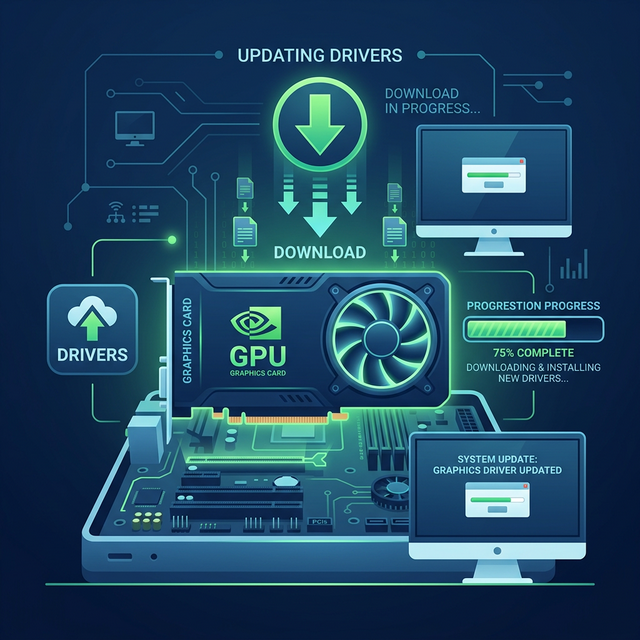
Open Device Manager, expand "Sound, video and game controllers." Right-click your audio device (usually Realtek) and select "Update driver → Search automatically." If that doesn't work, visit your laptop manufacturer's website for the latest audio driver. Also check how to update graphics drivers since HDMI audio comes from the GPU.
5. Restart Windows Audio Service
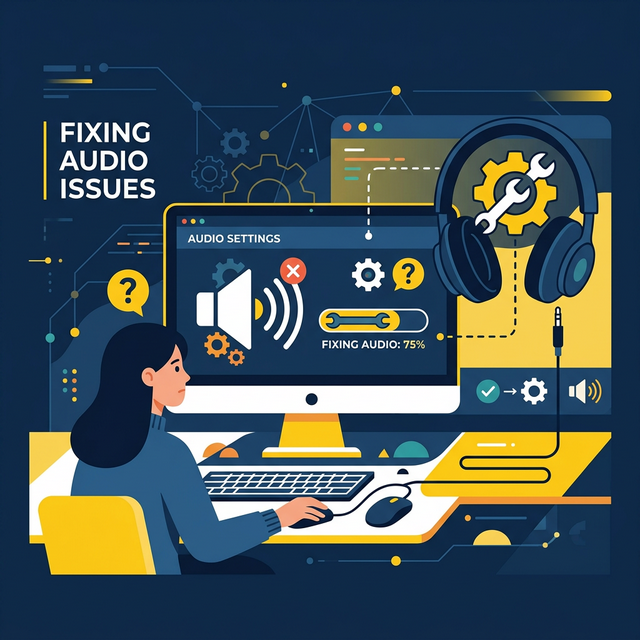
Press Windows + R, type services.msc. Find "Windows Audio" and "Windows Audio Endpoint Builder." Right-click each and select "Restart." Set both to Startup type "Automatic."
6. Change Audio Format
Right-click speaker icon → Sound settings → scroll down to "More sound settings." Double-click your output device → Advanced tab. Try different formats like "24 bit, 48000 Hz" or "16 bit, 44100 Hz." Click "Test" to check each one.
7. Disable Audio Enhancements
In the same Sound settings window, go to the "Enhancements" or "Spatial sound" tab. Uncheck "Enable audio enhancements" or set Spatial sound to "Off." Audio enhancements can cause crackling, distortion, or no sound on some hardware.
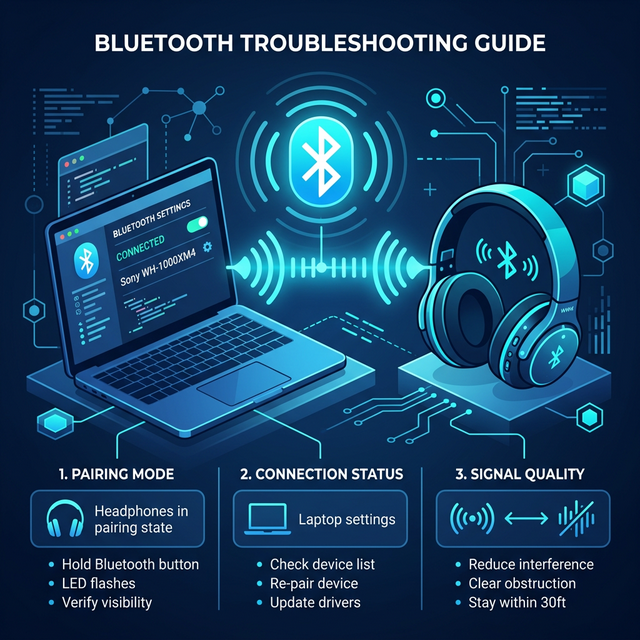
If your Bluetooth headphones have no audio, make sure they're set as the default output device and not just connected as a "phone" device (hands-free profile).
Frequently Asked Questions
Why does my audio crackle or pop?
Usually caused by driver issues, audio enhancements, or high CPU usage. Update drivers, disable enhancements, and close resource-heavy applications.
No sound after Windows Update?
Updates sometimes reset audio settings or install generic drivers. Reinstall your specific audio driver from the manufacturer's website.